Identify Chords from Notes
Know the notes but not the chord name? Select two or more notes on piano, string instruments, or notation, and Reverse Chord Finder Pro helps identify the chord names that match.
Find the name of a chord from its notes
Reverse Chord Finder Pro is built for the moment when you can play or hear a group of notes, but you do not know what to call the chord. Instead of searching from a chord name, you start with the notes themselves.
For example, select C-E-G to identify C major. Select A-C-E-G to identify A minor 7. For richer voicings, the app can show multiple possible chord names so you can choose the one that fits the musical context.
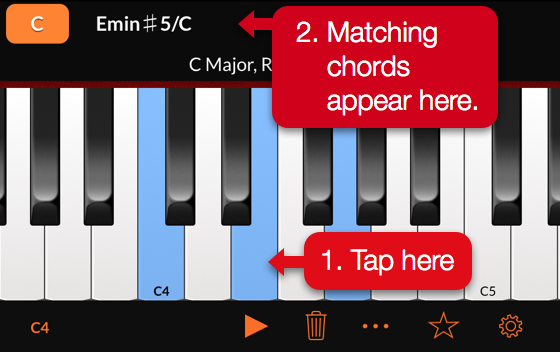
Identify chords on piano, string instruments, or notation
You can enter notes in the view that matches how you think about music. Tap notes on a piano keyboard, choose frets on string instruments like guitar, bass, ukulele, or other 3- to 12-string layouts, or build the notes directly on a music staff.
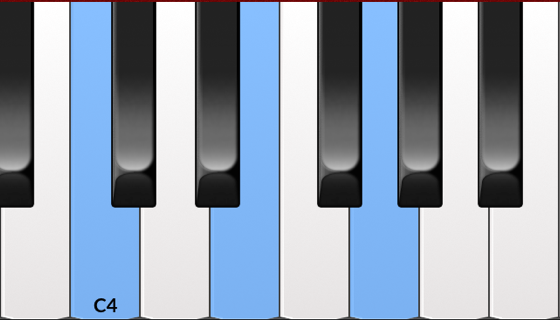
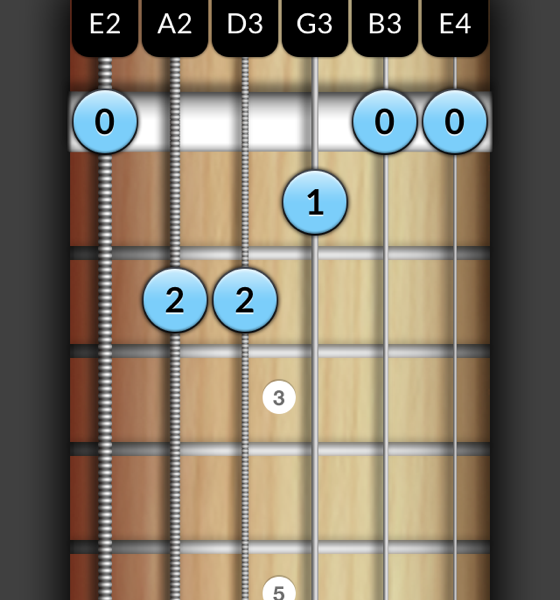
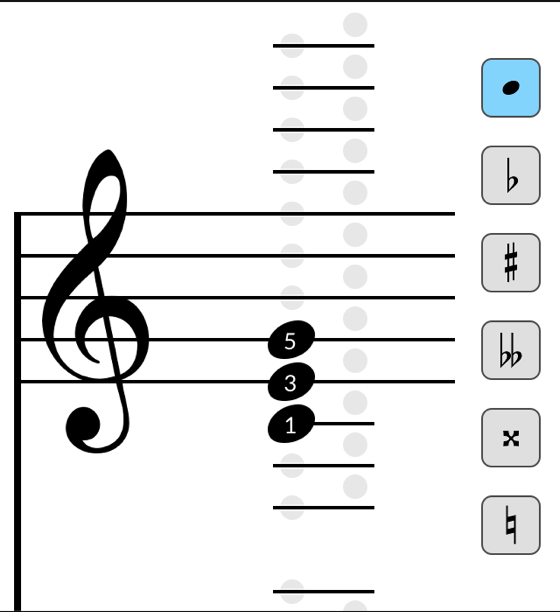
When the same notes have more than one chord name
Chord names depend on musical context. The same set of notes can sometimes describe more than one chord, especially with inversions, omitted notes, extended chords, or enharmonic spellings. Reverse Chord Finder Pro shows matching options and lets you inspect chord details before choosing the name that makes sense for your song or arrangement.

Chord finder by notes FAQ
How do I find a chord from notes?
Select two or more notes, then compare the chord names that match. If several names appear, use the surrounding key, bass note, melody, or harmonic function to choose the best label.
Can I identify guitar, bass, or ukulele chords by selecting frets?
Yes. The string instrument view lets you select frets on 3- to 12-string layouts, including right-handed and left-handed setups.
Can I identify piano chords from the notes?
Yes. Use the piano view to tap the notes you are playing, then review the matching chord names.
What is the difference between a chord finder and a reverse chord finder?
A traditional chord finder often starts with a chord name and shows notes or shapes. A reverse chord finder starts with the notes you already have and identifies possible chord names.
For a step-by-step walkthrough, read the Quick Start guide.