Quick Start
Table of Contents
Introduction
You have in your hand a reverse chord dictionary. You use Reverse Chord Finder when you already know which notes you want to play but you don't know what to call that particular chord.
If you are looking for a chord finder by notes, this is the core workflow: start with the notes you know, then let the app identify matching chord names.
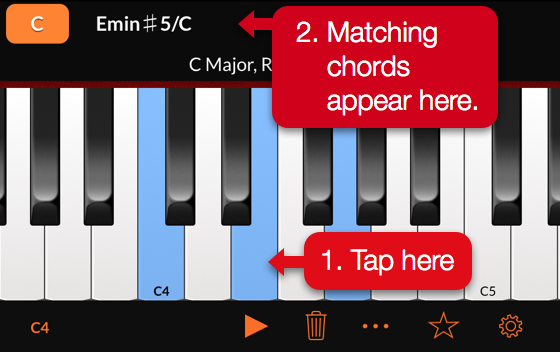
To use the app, simply select two or more notes, and Reverse Chord Finder will show you the names of all the chords that match.
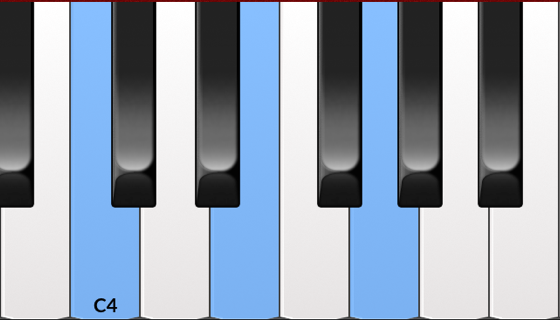
You can select notes on a piano:
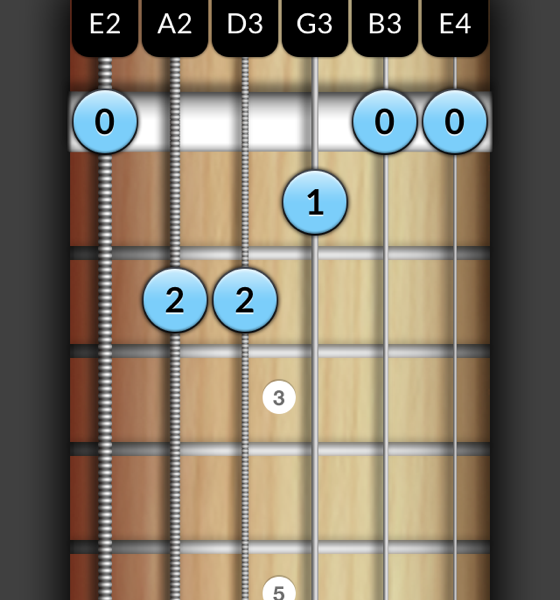
and on stringed instruments such as guitar or bass, both right-handed and left-handed:
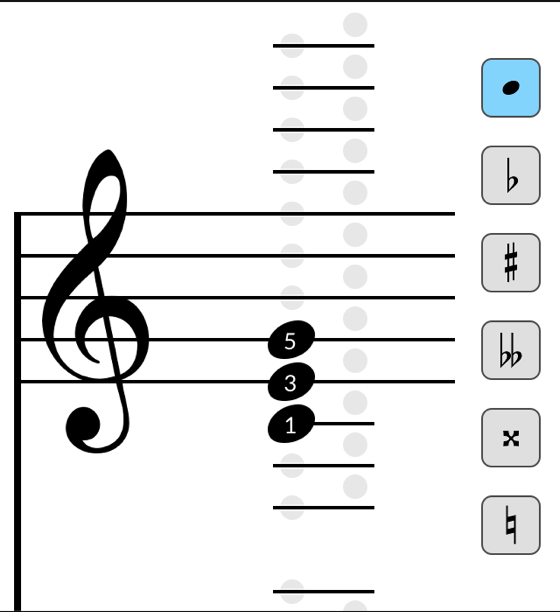
and by using music notation:
These screens all work in the same way: you tap on the instrument to select notes and then the app tells you which chords match your selection:
To see detailed information about the chord, tap on a chord name:

Double-tap a chord name to display a menu with more options, such as Add to Favorites.